

The first step is to determine if the website you want to edit is a Sitefarm Website. Scroll to the bottom of any page and look for: "This site is officially grown in SiteFarm." If you see this, the website is a Sitefarm website.
On the Sitefarm website you would like to log into, scroll to the bottom of the page. Under the "Admin Links" section, click the "Login" button to reach the login page.

If there is no "Admin Links" section, then add "/login" to the end of your website URL. For example, if logging into "https://lsit.ucdavis.edu", navigate to "https://lsit.ucdavis.edu/login" to reach the login page.
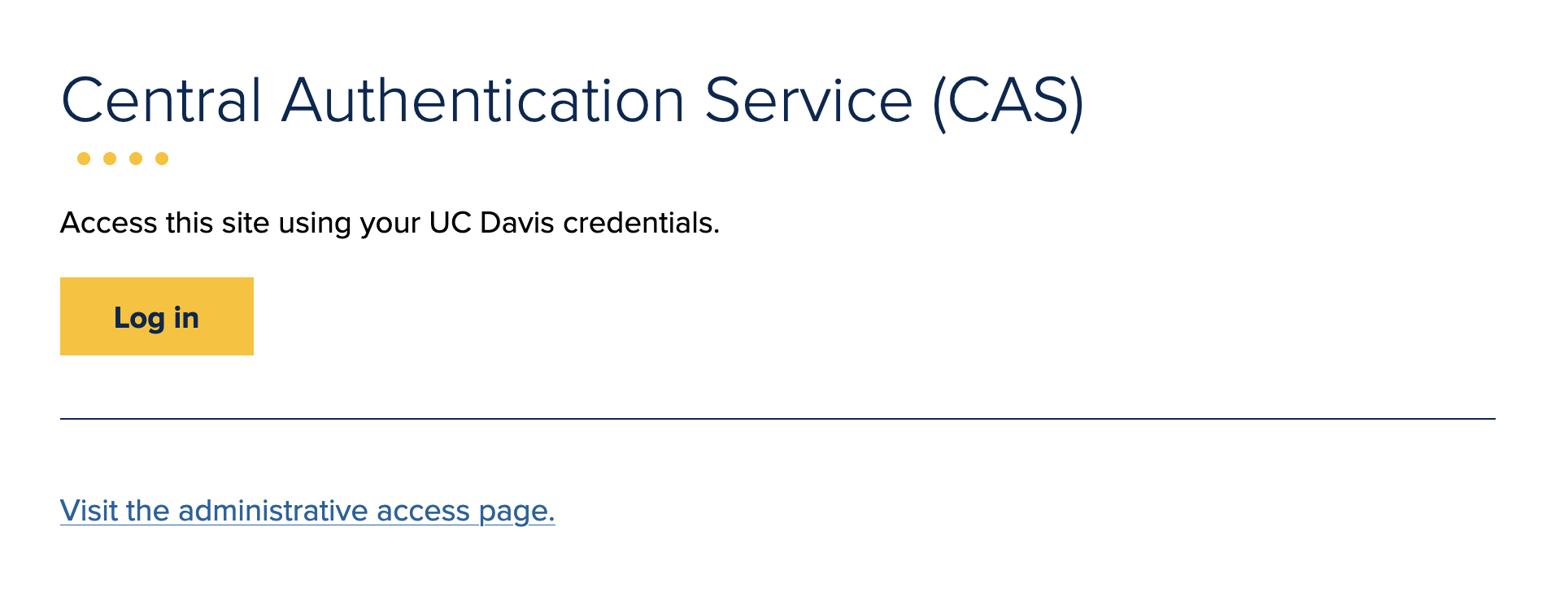
Once you reach the login page, you have the option of logging in with Central Authentication Service (CAS) or with a username and password. Click the blue link at the bottom to switch between the two options.
When you are logged in, the "Log in" button will change to "Log out."

The top editing menu bar will also appear when you are logged in.
